🔐 Cactus Custody
stVaults user flow for Cactus Custody customers
This guide explains how Cactus Custody clients can connect to the stVaults Web UI and interact with stVaults smart contracts using Cactus Link.
Cactus Link is a browser extension that works like one of the popular hot wallets.
Connecting Cactus Link to the stVaults Web UI
1. In your browser:
Ensure that the Cactus Link browser extension is installed in Chrome. Please confirm with your Administrator that the required permissions have been configured to connect your DeFi account to Cactus Link. For more details, refer to the Cactus Link guide.
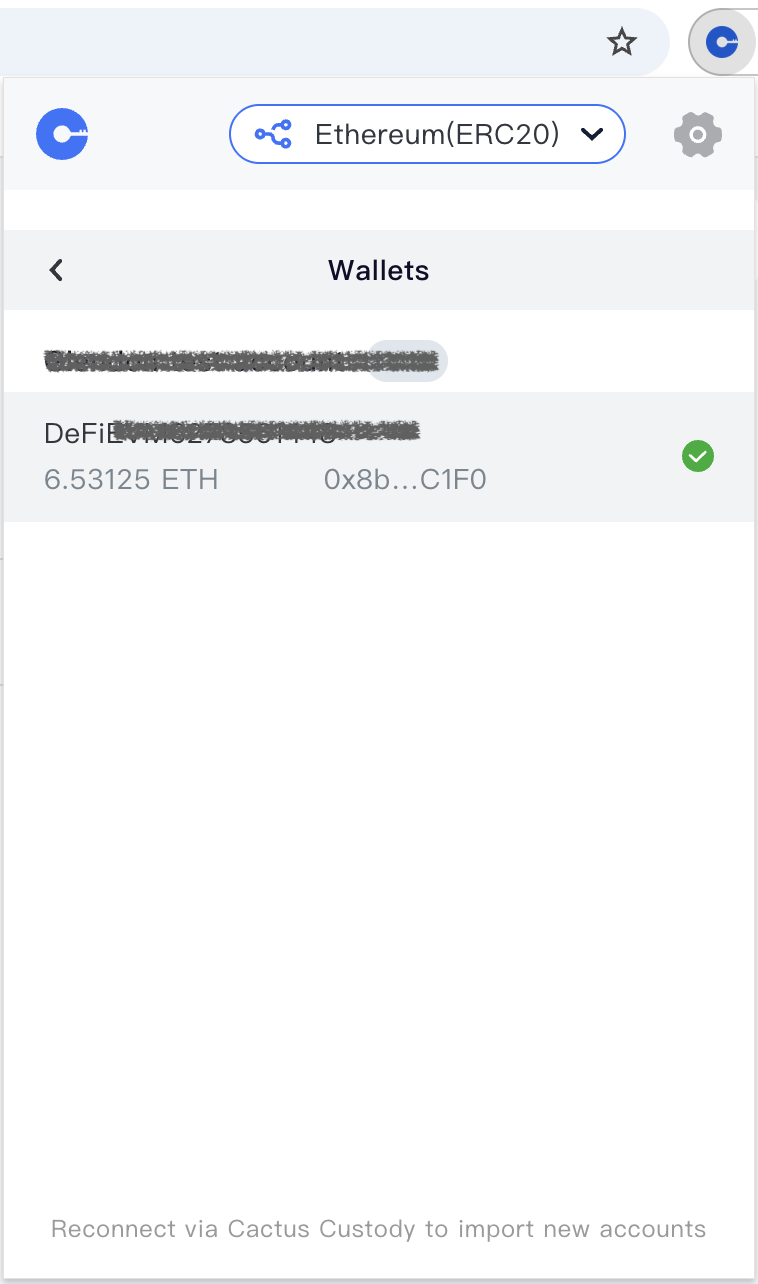
1.1. Open browser extension UI:
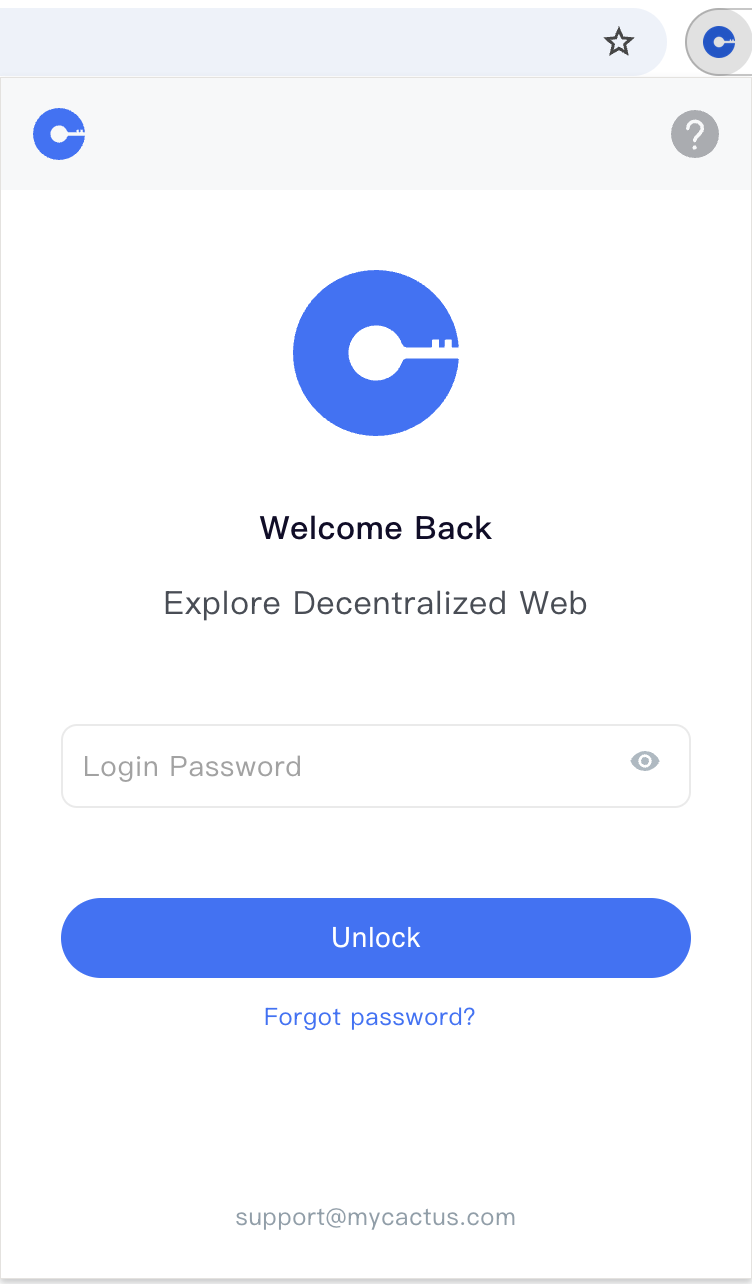
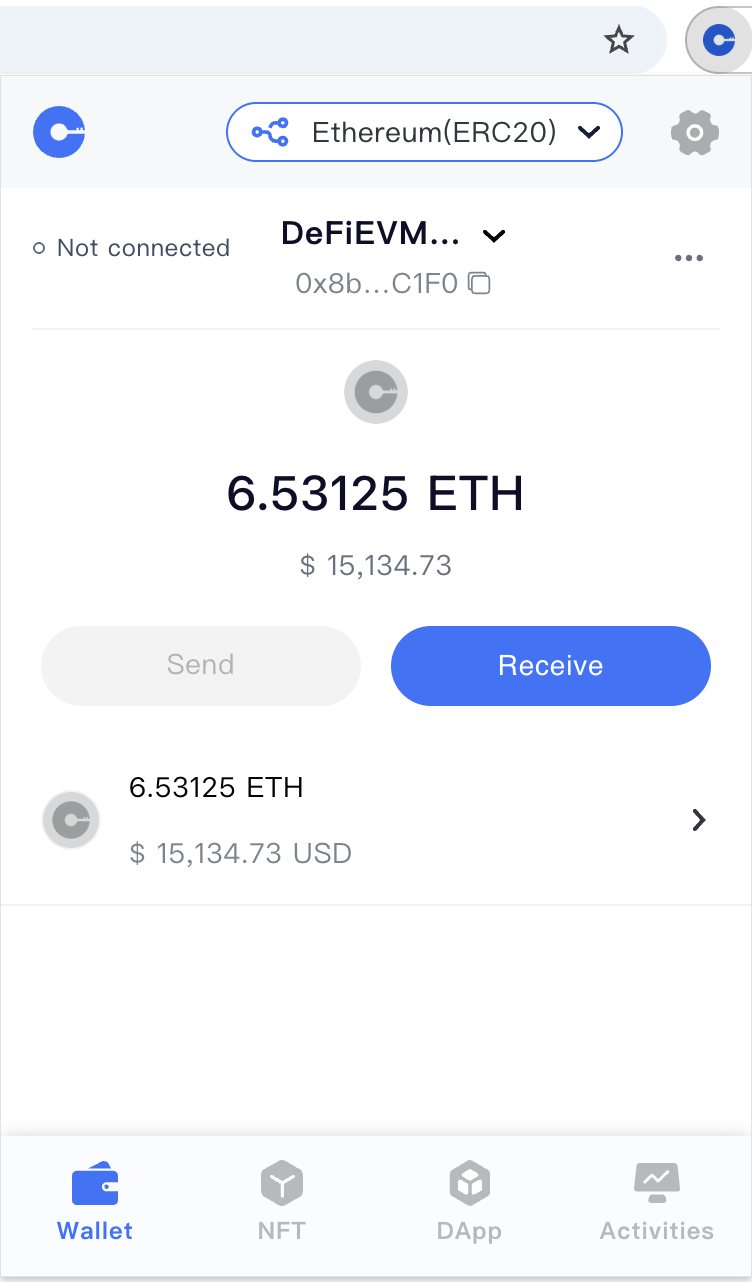
1.2. Select network and address to connect:
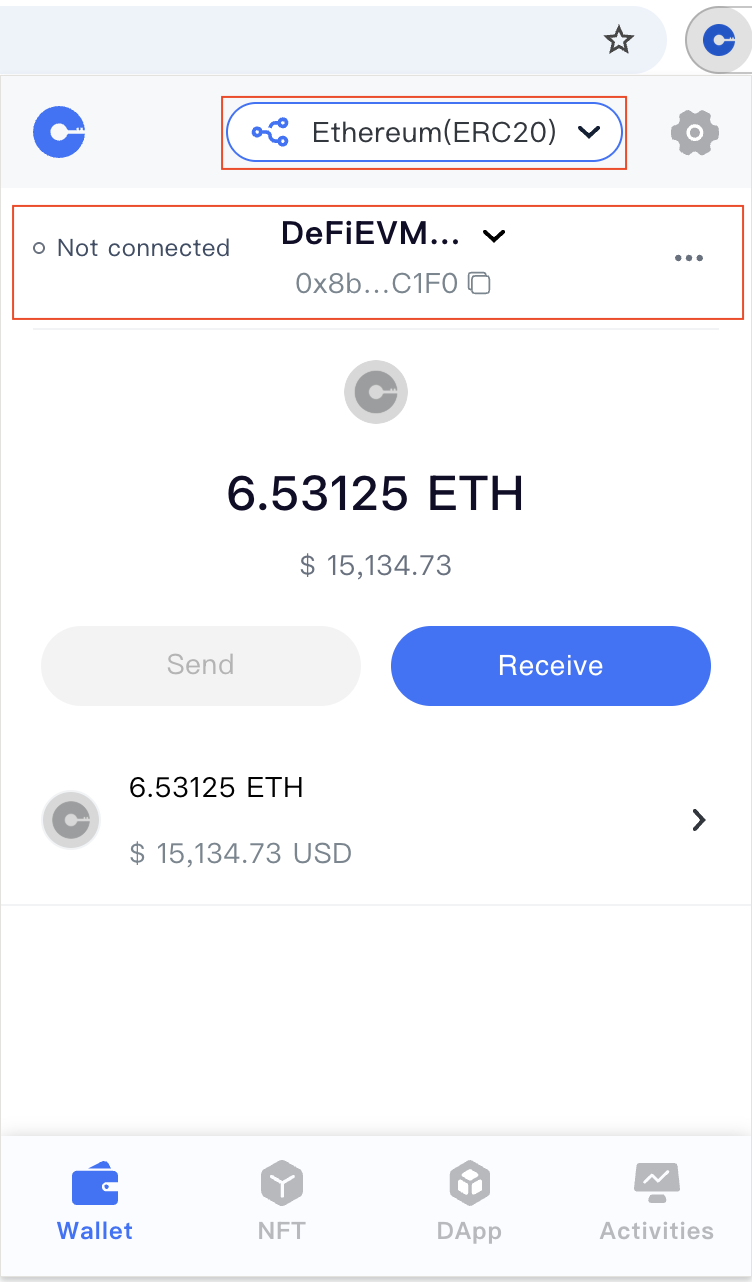
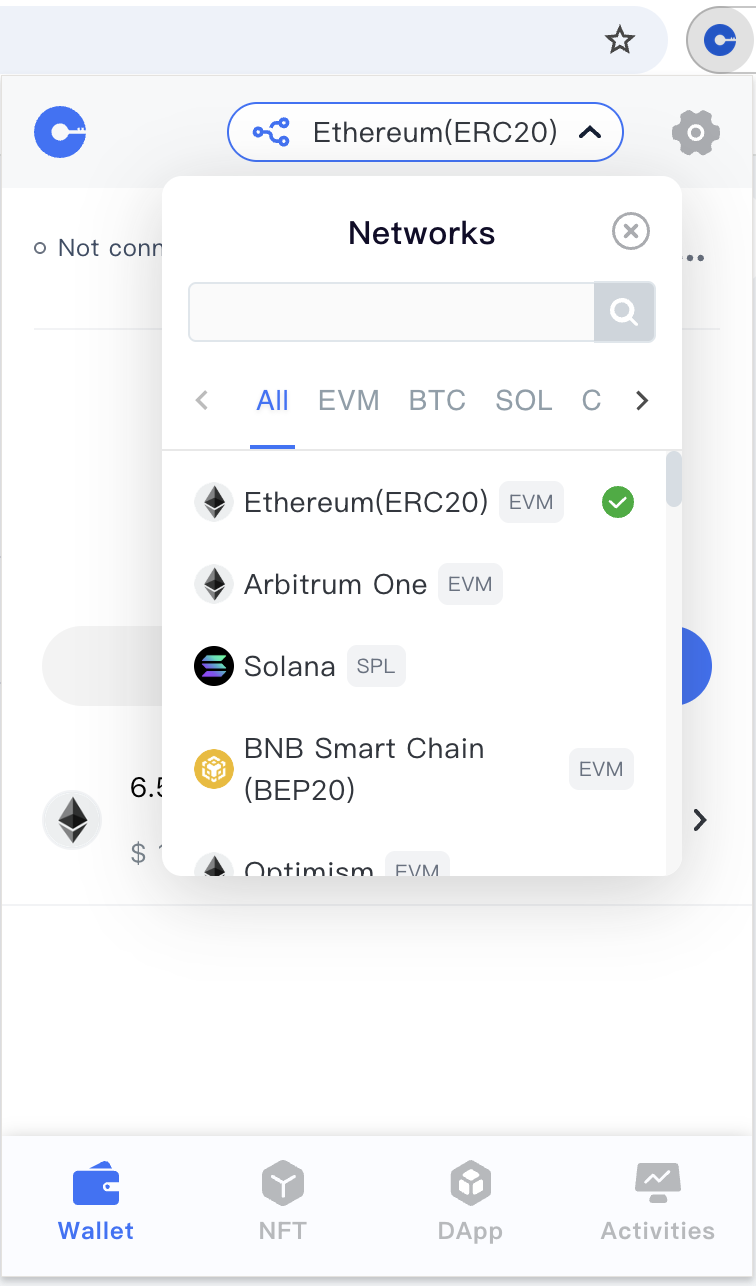
2. In the stVaults Web UI:
2.1 Open stVaults Web UI and click "Connect wallet"
- Mainnet: https://stvaults.lido.fi/
- Hoodi testnet: https://stvaults-hoodi.testnet.fi/
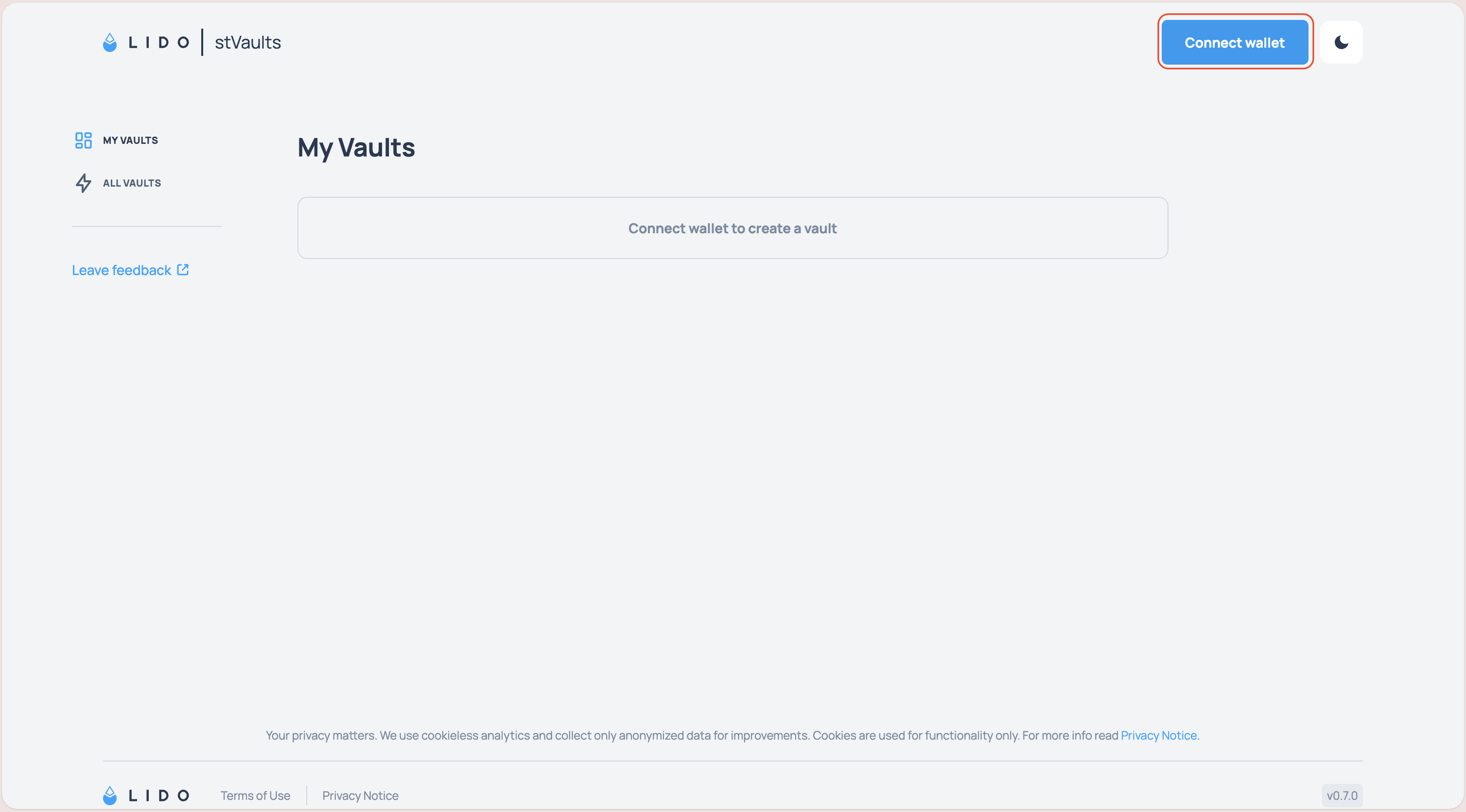
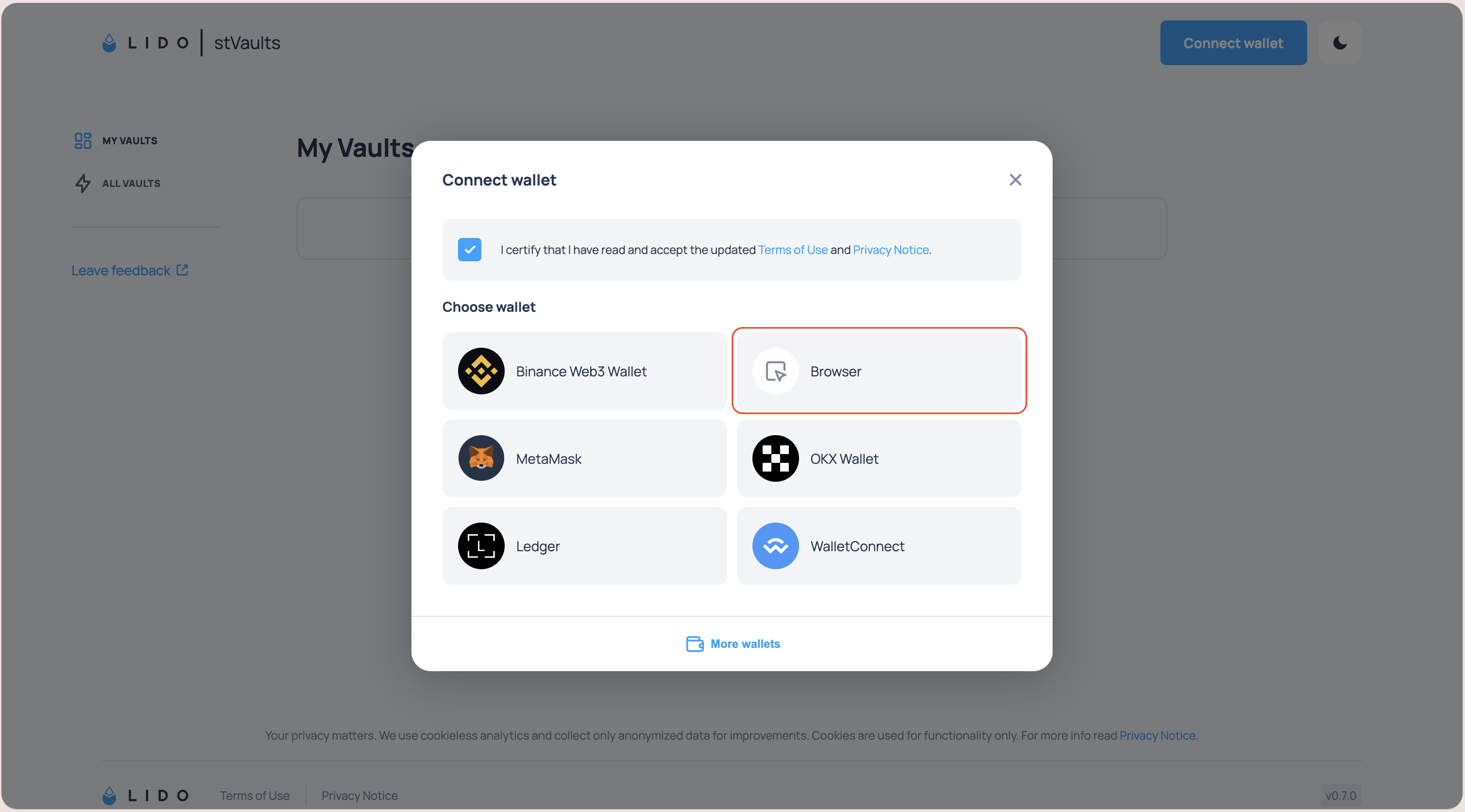
2.2. Click "Browser" button in the dialog window.
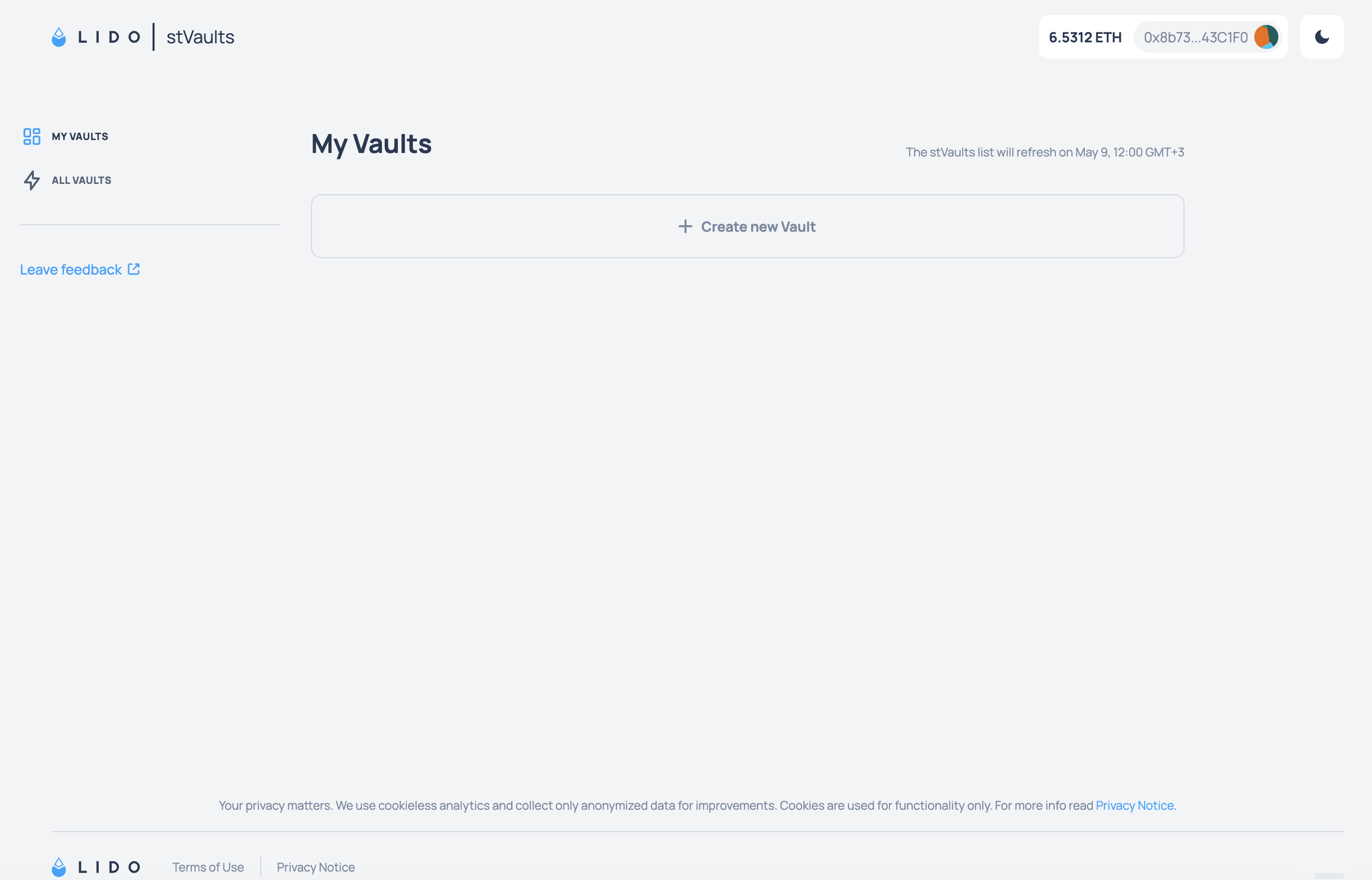
2.3. Connection established.
Your Cactus Link wallet address will now appear as connected, and you can create and manage stVaults.
Whitelisting smart contract addresses
To use the stVaults infrastructure, the stVaults smart contracts must be whitelisted for interaction. Please ask your administrator to add the required stVaults contract addresses to the whitelist.
You can find the addresses required for whitelisting in the Custodians overview list.